English


















































Step-by-Step Guide to Using a Virtual Mailbox
-
Admin_Virtual / 4 years
- June 14, 2022
- 0
- 4 min read


Managing business mail has evolved significantly in the digital age. For remote workers, freelancers, startups, and growing companies, a virtual mailbox offers a secure and flexible way to handle mail without relying on a physical office. Instead of receiving mail at a home or office address, your correspondence is processed digitally and accessible from anywhere. This guide walks you step by step through how to use a virtual mailbox effectively.
Step 1: Choose a Reliable Virtual Mailbox Provider
The first step is selecting a reputable virtual mailbox service. Look for providers that offer:
-
A real street address, not a P.O. Box
-
Secure facilities and trained staff
-
Mail scanning and forwarding options
-
Digital access via web or mobile apps
-
Compliance with business and postal regulations
A reliable provider ensures that your mail is handled professionally and securely from day one.
Step 2: Select Your Virtual Address
Once you’ve chosen a provider, you’ll select a mailing address. This address can be used for business registration, banking, tax documents, and client communication. When choosing a location, consider:
-
Acceptance by government authorities and banks
-
Professional reputation of the area
-
Convenience for potential mail forwarding
After selection, this becomes your official mailing address.
Step 3: Complete Identity Verification
To comply with postal and security regulations, most virtual mailbox services require identity verification. This typically involves:
-
Submitting a government-issued ID
-
Completing authorization forms
-
Verifying contact details
This step protects you from fraud and ensures that only authorized individuals can access your mail.
Step 4: Start Receiving Mail
Once your account is active, all mail sent to your virtual address is received at the provider’s secure facility. Each piece of mail is:
-
Logged into the system
-
Categorized by sender and date
-
Stored securely until you decide how to handle it
You’ll receive notifications when new mail arrives.
Step 5: View Mail Digitally
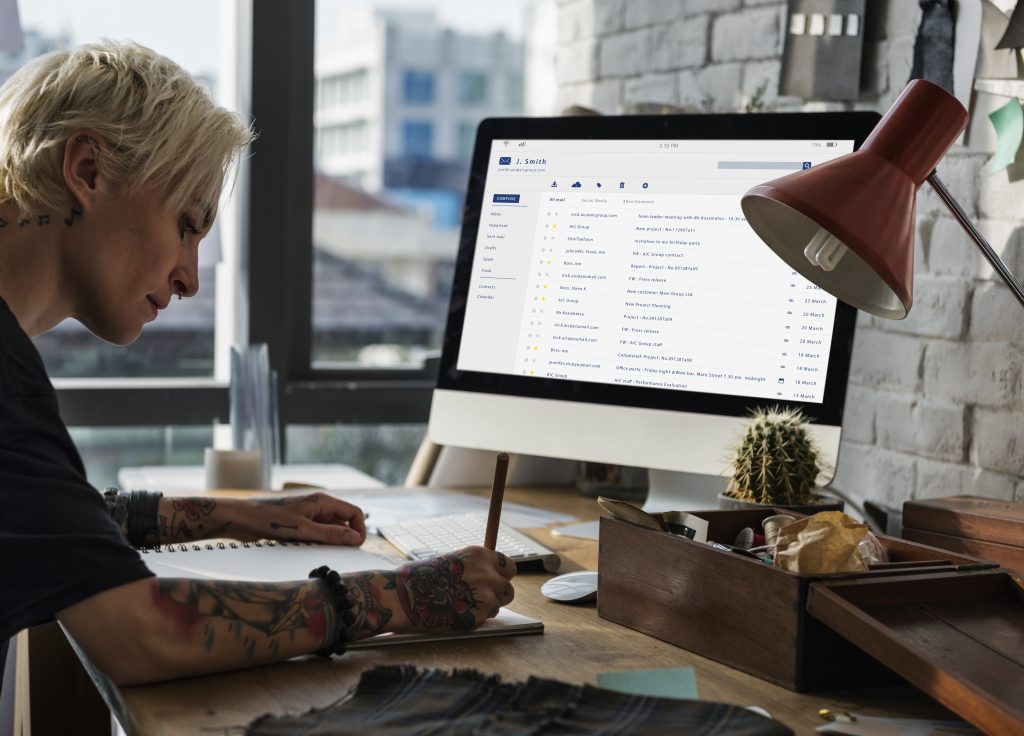
One of the key advantages of a virtual mailbox is digital access. Providers scan the front of each mail item and upload it to your online dashboard. From there, you can:
-
Preview sender information
-
Decide whether to open and scan the contents
-
Identify urgent or important documents
This eliminates the need to physically check mail and ensures timely access to critical information.
Step 6: Choose How to Handle Each Mail Item
For every piece of mail, you can choose from several options:
-
Open and Scan: The contents are scanned and uploaded securely.
-
Forward: The physical mail is forwarded to your preferred address.
-
Store: Mail is securely stored for later access.
-
Shred or Destroy: Unwanted or sensitive mail is securely destroyed.
These options give you full control over how your mail is handled.
Step 7: Forward Mail When Needed
If you need physical copies of documents, you can request mail forwarding. Most providers offer flexible forwarding schedules, including:
-
On-demand forwarding
-
Weekly or monthly shipments
-
International forwarding
This ensures you receive important documents wherever you are, without revealing your personal address.
Step 8: Manage Mail for Teams
Virtual mailboxes are ideal for businesses with multiple team members. Many services allow:
-
Multiple user access
-
Permission-based controls
-
Shared viewing of scanned documents
This makes collaboration easier while maintaining security and accountability.
Step 9: Maintain Security and Compliance
To keep your mail secure:
-
Use strong passwords for your mailbox account
-
Enable multi-factor authentication if available
-
Review activity logs regularly
-
Keep address information consistent across all official documents
These practices help protect sensitive business information and ensure regulatory compliance.
Step 10: Optimize Your Workflow
Over time, you can streamline your mail management by:
-
Setting up automatic scanning for important senders
-
Creating forwarding rules
-
Archiving documents digitally
-
Integrating your mailbox with accounting or document management systems
This turns your virtual mailbox into a powerful productivity tool.
Conclusion
Using a virtual mailbox is a simple yet highly effective way to manage business mail in today’s remote-first environment. By following this step-by-step process, businesses can receive, review, and control their mail securely from anywhere in the world.
Virtual mailboxes improve efficiency, enhance privacy, and reduce the risks associated with physical mail handling. For freelancers, startups, and remote teams, they offer a professional, secure, and flexible solution that grows alongside the business.